Build dashboards with Firestore
Cloud-hosted NoSQL document database provided by Google Cloud Platform, tightly integrated with Firebase ecosystem.


How do I activate this integration?
First Step
Login to your Onvo account, go to the Integrations page click on Connect next to the Firestore card.
Second Step
You will then be shown a configuration modal where you can enter the relevant credentials and click on Connect Firestore.
Third Step
You can now head over to the Data sources page and click on New data source.
Fourth Step
Fill in a name for the data source, an optional description and choose Firestore as the data source type. Then click on Connect.
Fifth Step
In the page that appears, select the data types or tables you want to sync and click on Save changes.
What can I do with this integration?
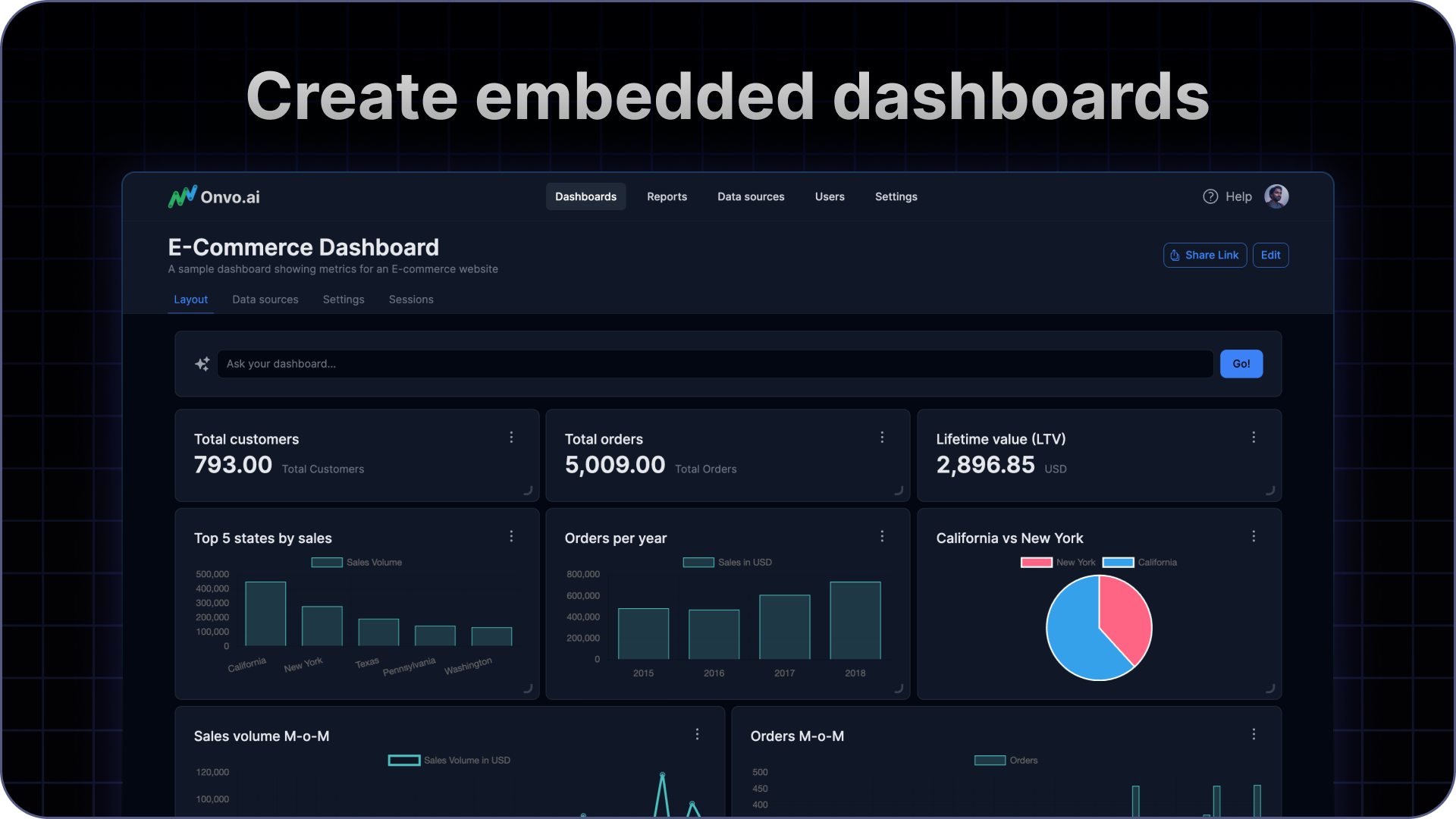
You can pull in data from multiple tables/databases as data sources on Onvo to build your dashboards and reports.
Security considerations
It is recommended to setup a separate user on your Firestore system with just read access.
If you do restrict access by IP addresses, make sure to whitelist 35.209.78.5 for Onvo AI to access your data.